
Step-by-step help with the Chattanooga Times Free Press app and the subscriber tablet. Choose a section below, then tap any topic to open it.
Help Topics
Using the App
Reading, listening to and sharing stories.
Help Guide
Fixes for Wi-Fi, charging, signing in and more.
Updating
Keeping the tablet and app up to date.
Subscriber Questions
Returns, equipment and your photos.
iPad or iPhone App
Download on the App Store →Android App
Get it on Google Play →Forgot Your Password?
Reset Password →Using the Chattanooga Times Free Press App
The Chattanooga Times Free Press app shows the full printed paper, page by page, just as it looks in print. It also has the latest news, updated all day.
Words to Know
These words are used throughout this guide.
- Tap
- Touch the screen lightly with one finger, then lift it.
- Touch and hold
- Press one finger on the screen and keep it there for about two seconds.
- Swipe
- Slide one finger across the screen.
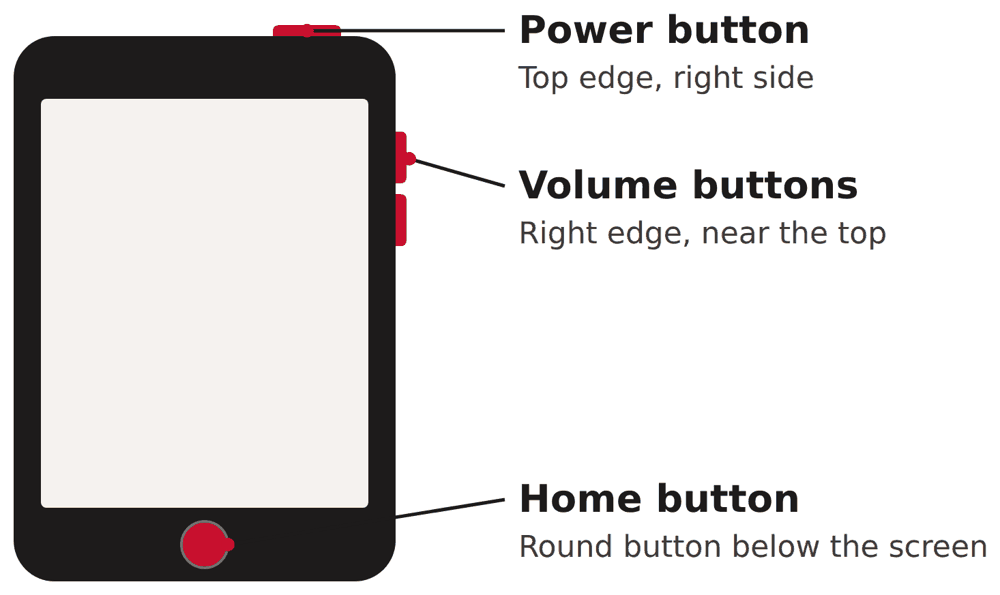
- Home button
- The round button below the screen. Press it any time to see all your apps.
- Home Screen
- The screen that shows all your apps.
- Settings
- The gray icon with a gear on it.
- App Store
- The blue icon with a white letter A.
- Wi-Fi
- The wireless internet connection the app uses to get the paper.
Get the App
The Chattanooga Times Free Press app is free. Choose the link for your device:
- iPad or iPhone
- Download on the App Store
- Android phone or tablet
- Get it on Google Play
What You Can Do
- Read the paper
- Swipe through recent editions, or go straight to Local, Sports, Obituaries and more.
- See the latest news
- Scroll up to see new headlines.
- Listen
- Have any story read out loud to you.
- Save and share
- Save stories to read later, or send them to family and friends.
- Make it easier to read
- Make the words bigger and the screen brighter.
Finding Your Way Around
There is a row of buttons along the bottom of the app:
- Home
- Takes you back to the top of the latest news.
- My Library
- Shows the stories you saved.
- More
- Opens your account and settings.
To see a section, such as Sports, tap the small list icon next to the word Latest. Then tap the section you want.

Reading a Story
Tap a headline to open the story. Then use the buttons along the bottom:
- Share
- Send the story by text message or email.
- Bookmark
- Save the story in My Library.
- Headphones
- Listen to the story read out loud.
- aA
- Slide the top bar to change the size of the words. Slide the lower bar to change the brightness.
Removing Old Papers
Old papers take up room. To remove one, tap Home at the bottom of the app. Touch and hold the cover of an old paper, then tap Remove from Device.
Short How-To Videos
Help Guide
Simple fixes for common problems. Go one step at a time. If something still isn’t working, we’re happy to help.
Try These 3 Things First
Most problems are fixed by one of these. Try them in order. Check the app after each one.
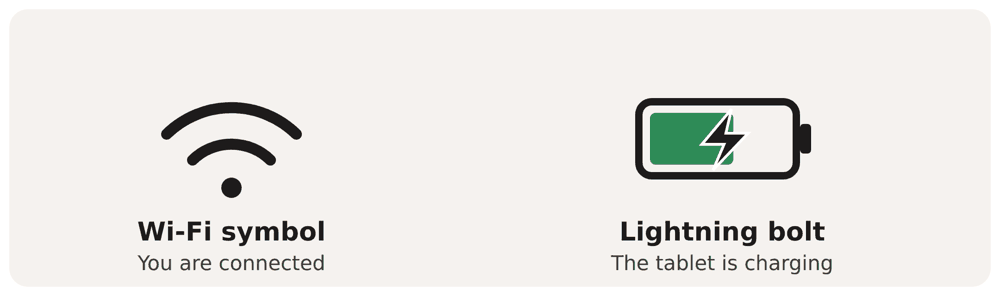
- Check Wi-Fi. Look in the top right corner of the screen for the Wi-Fi symbol. If you don’t see it, go to Wi-Fi and Internet.
- Close the app and open it again. See Close an App.
- Restart the tablet. See Restart the Tablet.
Restart the Tablet
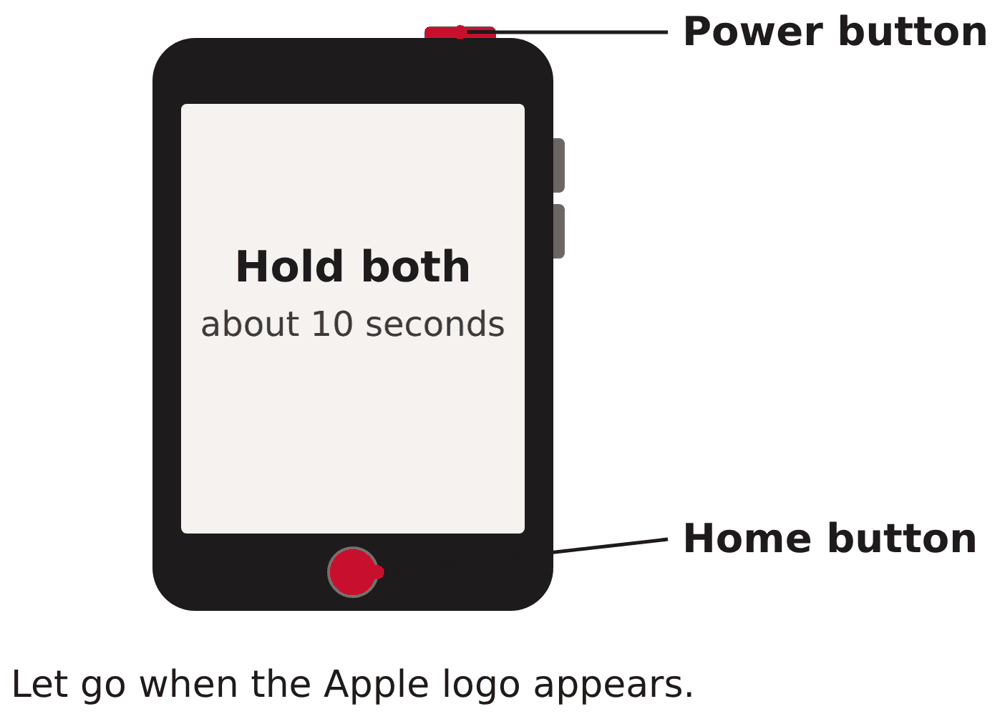
Restarting is like turning it off and on again. It fixes many problems and won’t erase anything.
- Press and hold the Home button and the Power button at the same time.
- Keep holding for about 10 seconds, until the Apple logo appears.
- Let go of both buttons.
- When the lock screen appears, press the Home button.
- Open the Chattanooga Times Free Press app again.
Close an App
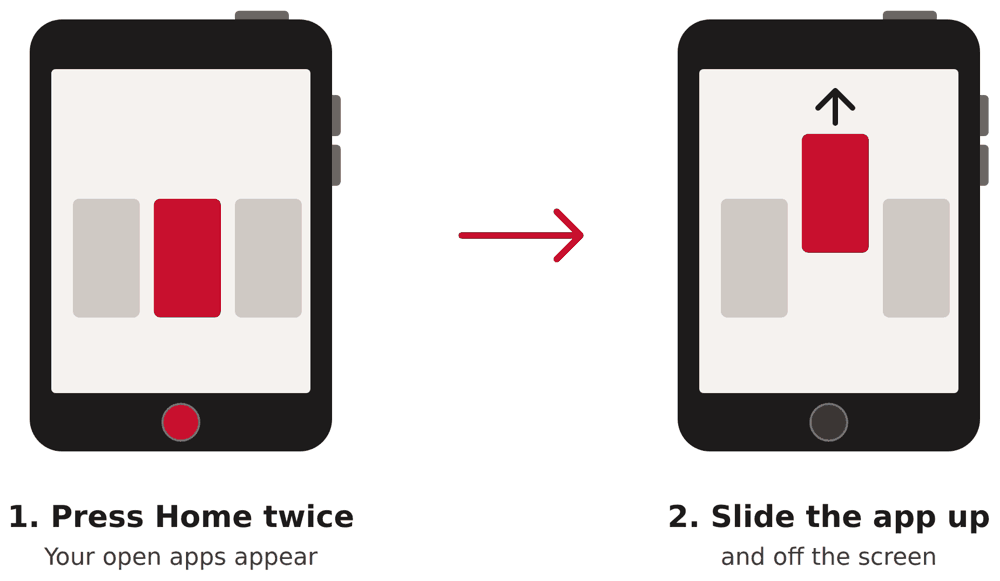
- Press the Home button two times, quickly. You will see small pictures of your open apps.
- Find the Chattanooga Times Free Press app. Put your finger on it and slide it up, off the top of the screen.
- Press the Home button once.
- Tap the Chattanooga Times Free Press app to open it again.
Power and Charging
The Tablet Won’t Turn On
- Press and hold the Home and Power buttons for about 10 seconds.
- If nothing happens, plug in the charger and wait 30 minutes.
- Leave it plugged in and try step 1 again.
- If the screen stays dark, call 423-757-6262 or email circulationcs@timesfreepress.com.
The Tablet Won’t Charge
- Make sure the cord is pushed all the way into the tablet and into the charger block.
- Plug the charger block into a different wall outlet. Power strips and computers may charge slowly or not at all.
- Look at the battery in the top right corner. A lightning bolt means it is charging.
- Still not charging? Call 423-757-6262 or email circulationcs@timesfreepress.com. We may be able to replace the tablet or charger.
Wi-Fi and Internet
The app needs Wi-Fi to bring you each day’s paper.
Check That Wi-Fi Is On
- Tap Settings.
- Tap Wi-Fi.
- The switch next to Wi-Fi should be green. There should be a check mark next to your network’s name.
Connect to Your Wi-Fi
- Tap Settings, then tap Wi-Fi.
- If the switch is not green, tap it to turn Wi-Fi on.
- Tap the name of your network.
- Type your Wi-Fi password, then tap Join. The password is often printed on a sticker on your internet box (router).
Away From Home
Use the same steps at a hotel or another home. Some public networks ask you to open Safari (the blue compass icon) and agree to their terms first.
Wi-Fi Is On, but Nothing Loads
- Check whether your other devices, like a phone or computer, can get online.
- If they can’t, restart your internet box: unplug it, wait 30 seconds, and plug it back in. Wait a few minutes.
- On the tablet, tap Settings, then Wi-Fi. Tap the switch to turn Wi-Fi off. Wait a few seconds, then turn it back on.
- If nothing in your home can get online, call your internet provider.
Signing In and Passwords
I Can’t Sign In
- Make sure you are using the email address on your newspaper subscription.
- Type your password again, slowly.
- Close the app and open it again. Try signing in again.
- Still can’t sign in? Reset your password.
I Forgot My Password
- Go to timesfreepress.com/forgot-password.
- Type the email address on your newspaper subscription.
- Check your email for a message with instructions. If it doesn’t arrive in a few minutes, check your junk or spam folder.
- Open the Chattanooga Times Free Press app and sign in with your new password.
The Website Works, but the App Doesn’t
- Close the app, open it again and sign in.
- Restart the tablet and try again.
- Still not working? Call 423-757-6262 or email circulationcs@timesfreepress.com. We’ll check your account.
The App Says My Subscription Has Ended
If the app says your subscription is expired or can’t be found, call 423-757-6262 or email circulationcs@timesfreepress.com. We’ll check your account.
Problems With the Chattanooga Times Free Press App
The App Won’t Open, or Closes Right Away
- Check Wi-Fi.
- Close the app and open it again.
- Restart the tablet, then open the app.
The App Is Frozen
- Close the app and open it again.
- If the whole tablet is frozen, restart it.
- Open the app again.
I See an Error Message
- Write down exactly what the message says.
- Check Wi-Fi.
- Make sure you’re signed in with your newspaper email address.
- Close the app and open it again.
- Restart the tablet.
- If you still see the message, call 423-757-6262 or email circulationcs@timesfreepress.com. Tell us what it says.
The App Is Updating
- Let the update finish. A small circle on the app’s icon means it is still working.
- Stay connected to Wi-Fi.
- When the circle is gone, tap the app to open it.
- If it seems stuck for a long time, restart the tablet.
I Can’t Find the App
- Press the Home button.
- Swipe left and right to look through each page of apps.
- Or, put your finger in the middle of the screen and swipe down. Type Chattanooga Times Free Press, then tap the app.
Today’s Paper
Today’s Paper Is Missing
- Check Wi-Fi.
- Tap Home at the bottom of the app and look for today’s date.
- Close the app and open it again.
- Restart the tablet.
- Still missing? Call 423-757-6262 or email circulationcs@timesfreepress.com.
The Paper Won’t Load All the Way
- Check Wi-Fi.
- Make sure the tablet has room. See Freeing Up Space.
- Close the app, open it again and open the paper.
- Restart the tablet.
Freeing Up Space
If the tablet is full, the paper can’t download.
See What Is Using Space
- Tap Settings.
- Tap General, then tap iPad Storage.
- Wait for the list to appear. The apps using the most space are at the top.
Delete Photos and Videos
- Tap Photos (the colorful flower icon).
- Tap Select in the top right corner.
- Tap each photo you want to remove, then tap the trash can.
- Tap Albums. Scroll down and tap Recently Deleted. Tap Select, then Delete All.
Delete Apps You Don’t Use
- On the Home Screen, touch and hold the app until a menu appears.
- Tap Remove App, then tap Delete App.
Puzzles and Printing
A Puzzle Won’t Load
- Check Wi-Fi.
- Close the app and open it again.
- Restart the tablet.
Printing
Want to print a story, page or puzzle? Call 423-757-6262 or email circulationcs@timesfreepress.com and we’ll help you find the best way.
The Screen
The Screen Is Too Dark
- Tap Settings, then tap Display & Brightness.
- Slide the brightness bar to the right.
The Paper Looks Wrong on the Screen
If the paper fills only part of the screen, shows two pages, or looks split:
- Look for the page view buttons in the app and try a different view.
- Tap Home at the bottom of the app, then open the paper again.
- Turn the tablet. It may show one page when upright and two pages when turned sideways.
- Restart the tablet.
- Still looks wrong? Call 423-757-6262 or email circulationcs@timesfreepress.com and tell us what you see.
Bigger Words, Sound and Screen Settings
Make a Page Bigger (Zoom)
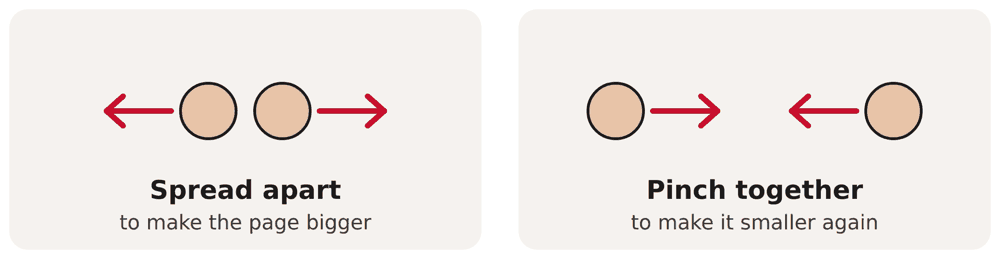
- Put two fingers on the page.
- Spread your fingers apart to make the page bigger.
- Slide one finger to move around the page.
- Pinch your fingers together to make it smaller again.
Make Words Bigger Everywhere
- Tap Settings, then tap Display & Brightness.
- Tap Text Size. Slide the bar to the right.
- For darker words, go back and turn on Bold Text.
There Is No Sound
- Press the top volume button on the right edge a few times.
- Swipe down from the top right corner. If the bell icon is lit up, tap it to turn sound on.
- Unplug any headphones or turn off wireless speakers.
- Close the app and open it again.
The Screen Turns Off Too Fast
- Tap Settings, then tap Display & Brightness.
- Tap Auto-Lock.
- Choose a longer time, like 10 or 15 minutes.
The Keyboard
The Keyboard Is Split in Two
- Put two fingers on the keyboard and pinch them together.
- Or, touch and hold the keyboard button in the bottom right corner. Slide up to Merge and let go.
The Keyboard Is Small and Floating
- Put two fingers on the keyboard.
- Spread them apart. The keyboard goes back to full size.
Updating the Tablet and App
The tablet and the Chattanooga Times Free Press app usually update on their own. If something didn’t update, this section walks you through it, one step at a time. These steps won’t harm the tablet or your subscription.
Before You Start
- Plug the tablet into its charger.
- Make sure Wi-Fi is on.
- Have your newspaper email address and password nearby.
- Set aside about 30 minutes.
New to these words? See Words to Know.
Where to Start
- The app asks you to sign in
- Go to Step 3.
- A message says there isn’t enough space
- Go to Making Room.
- The app won’t update
- Go to If the App Won’t Update.
Step 1: Update the Tablet
- Press the Home button.
- Tap Settings.
- On the left side, tap General.
- On the right side, tap Software Update.
- Wait a few seconds.
- If it says the tablet is up to date
- You’re all set. Go to Step 2.
- If you see Update Now or Install Now
- Follow the steps below.
- Tap the button.
- Follow the on-screen prompts. If asked, type the tablet’s passcode.
- Leave the tablet plugged in and set it aside.
Step 2: Update the Chattanooga Times Free Press App
- On the tablet, tap this link: Open the Chattanooga Times Free Press app in the App Store.
- Look at the button to the right of the app’s name.
- If it says Update
- Tap it. A small circle fills in while it downloads.
- If it says Open
- The app is already up to date. Go to Step 3.
If you’re asked for your Apple ID password, type it in.
If the App Store asks for an Apple ID you don’t know, or the update won’t start, go to If the App Won’t Update.
Step 3: Sign Back In to the App
After an update, the app may ask you to sign in again. Your subscription is still active. The app just needs to know it’s you.
- Tap the Chattanooga Times Free Press app to open it.
- Tap More in the bottom right corner.
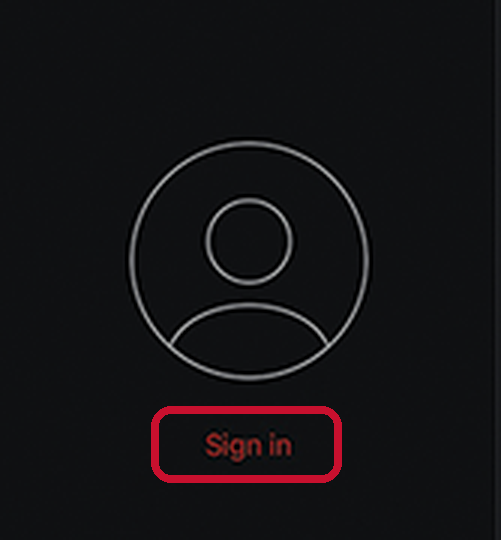
- Tap Sign in, below the person icon.
- Type the email address for your newspaper subscription.
- Type your newspaper password.
- Tap Sign In to finish.
You’re done. Today’s paper should appear.
Making Room
Updates need free space. Try one or more of these. Then go back to the step you were on.
Remove Old Papers (Easiest)
- Open the Chattanooga Times Free Press app.
- Tap Home in the bottom left corner.
- Touch and hold the cover of an old paper until Remove from Device appears.
- Tap Remove from Device.
- Do the same for other old papers.
Delete Photos and Videos
See Delete Photos and Videos in the Help Guide.
Delete Apps You Don’t Use
- On the Home Screen, touch and hold the app until a menu appears.
- Tap Remove App.
- Tap Delete App.
If the App Won’t Update
The Chattanooga Times Free Press app was set up before the tablet was delivered. Because of this, the App Store sometimes can’t update it. Here is how to fix it:
- Sign in with your own Apple ID.
- Delete the old app.
- Download a new copy.
- Sign back in to the Chattanooga Times Free Press app.
Part A: Check for an Apple ID
- Tap Settings.
- Look at the very top of the left side.
- If you see your name
- You’re already signed in. Go to Part C.
- If you see “Sign in to your iPad”
- Go to Part B.
Part B: Sign In With Your Apple ID
If you already have an Apple ID, such as one on an iPhone:
- Tap “Sign in to your iPad.”
- Type your Apple ID email address.
- Type your Apple ID password.
- If a code is sent to your phone, type it in.
Then go to Part C. Don’t have an Apple ID? Make one below.
Make an Apple ID
- Tap “Sign in to your iPad.”
- Tap Don’t have an Apple Account? On some tablets it says Don’t have an Apple ID?
- Tap Create.
- Follow the on-screen prompts. You’ll be asked for your name, birthday, an email address you check often, a new password and your cell phone number.
- Apple will send codes to your email and phone. Type them in when asked.
Part C: Delete the Old App
- Press the Home button.
- Touch and hold the Chattanooga Times Free Press app until a menu appears.
- Tap Remove App.
- Tap Delete App.
- Tap Delete.
This removes papers saved on the tablet. Your subscription stays active. You’ll sign back in later in these steps.
Part D: Download a New Copy
- Tap this link: Get the Chattanooga Times Free Press app.
- Tap Get. If you see a cloud with an arrow instead, tap that.
- If asked, type your Apple ID password.
- When it finishes, tap Open.
- If the app asks to send you notifications, either choice is fine.
Part E: Sign In
Follow Step 3 to sign in with your newspaper email address and password.
Turn On Automatic Updates
This lets future updates happen on their own, usually overnight while the tablet charges.
- For the tablet
- Tap Settings > General > Software Update > Automatic Updates. Turn on both switches so they are green.
- For apps
- Tap Settings > App Store. Turn on the App Updates switch so it is green.
Subscriber Questions
Answers about the tablet that comes with your Chattanooga Times Free Press subscription.
What If the Tablet Isn’t Working?
Start with the Help Guide. If that doesn’t fix it, call 423-757-6262 or email circulationcs@timesfreepress.com to set up a service call.
Do I Get to Keep the Tablet?
No. You can use it for as long as you are a subscriber. If you end your subscription, please return it in good condition within 30 days. This is explained in the agreement you received when the tablet was delivered.
What Do I Send Back?
Please return all three items:
- The tablet
- The charging cord
- The charger block (the part that plugs into the wall)
Returning all three helps you avoid extra charges.
How Do I Return It?
First, call 423-757-6262 or email circulationcs@timesfreepress.com to ask for a prepaid shipping label. Then:
- Pack the tablet, cord and charger block in a padded envelope or box.
- Stick the shipping label on the package.
- Drop it off at any post office.
What Happens to My Photos and Files?
We erase every returned tablet. Once it is erased, nothing can be recovered. Please save or delete your personal photos and files before you send it back.
How Do I Turn Off the Passcode and Sign Out?
Turn Off the Passcode
- Tap Settings.
- Tap Touch ID & Passcode.
- Type your passcode.
- Tap Turn Passcode Off, then confirm.
Sign Out of Your Apple ID
Newer tablets may call it an Apple Account.
- Tap Settings.
- Tap your name at the top of the screen.
- Scroll down and tap Sign Out.
- Type your Apple ID password if asked. This also turns off Find My iPad.
Still Need Help?
Our circulation team is happy to help. Let us know which steps you already tried.
Email us
Hours
Subscriber services
Mon–Fri, 9 a.m.–5 p.m.
Sat, 9–10:30 a.m.
Sun, 9 a.m.–noon